
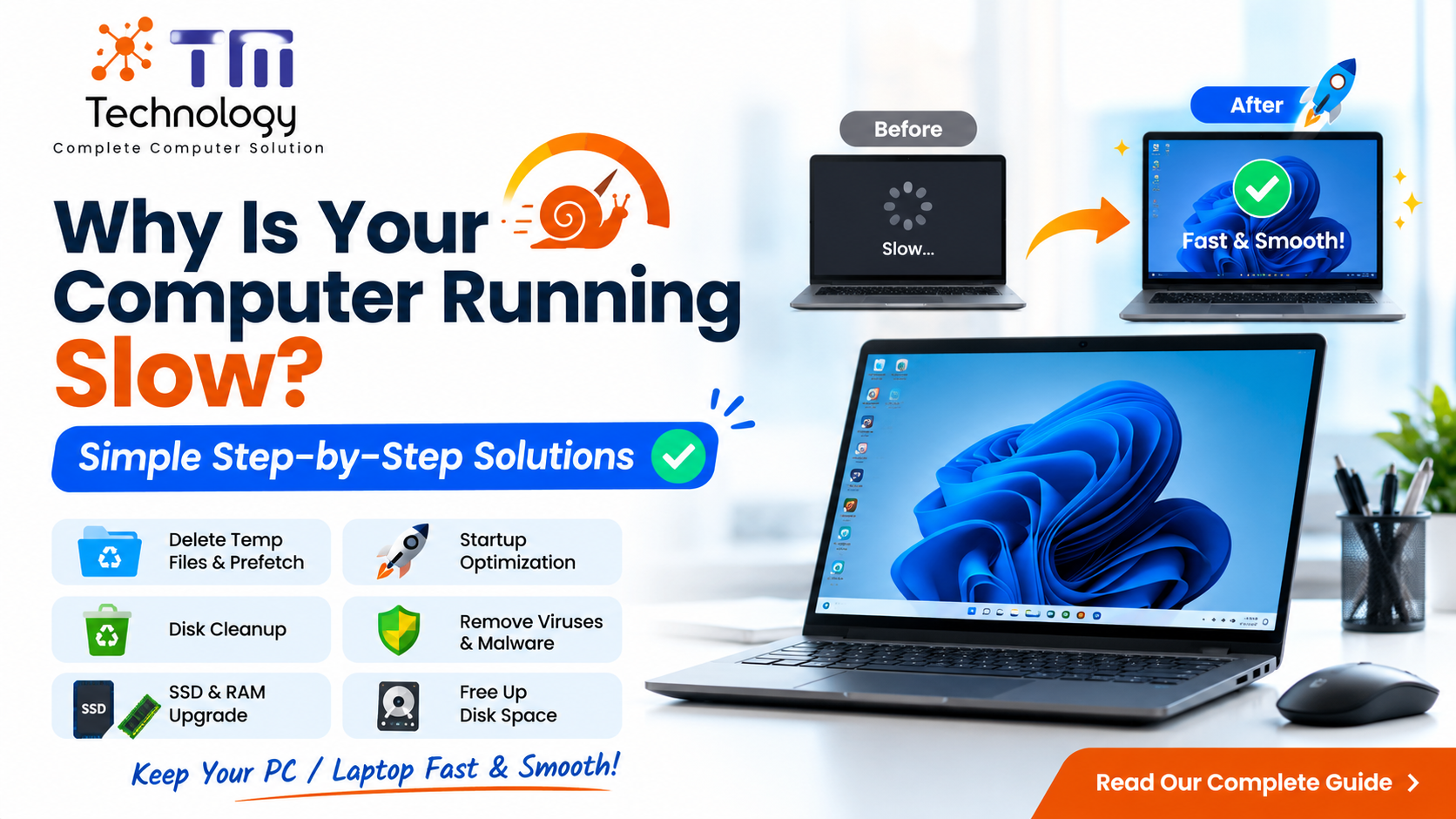
Why Is Your Computer or Laptop Running Slow? Step-by-Step Solutions
Why Is Your Computer or Laptop Running Slow? Step-by-Step Solutions | TM Technology
Why Does a Computer or Laptop Become Slow?
A slow computer or laptop can affect your work, online classes, business, and gaming. Over time, temporary files, unwanted software, startup programs, viruses, and low disk space can reduce your system’s performance.
At TM Technology – Complete Computer Solution, we provide professional computer and laptop optimization, repair, antivirus installation, SSD upgrades, RAM upgrades, Windows installation, and AMC services in Kolkata and across India.
Step 1: Restart Your Computer
If your computer has been running for a long time, restart it. This clears temporary memory and closes unnecessary background applications.
Step 2: Delete Temporary Files (Temp Files)
Method 1
- Press Windows + R
- Type:
temp - Press Enter
- Delete all files.
- Skip any files that cannot be deleted.
Method 2
- Press Windows + R
- Type:
%temp% - Press Enter
- Delete all files.
Method 3
- Press Windows + R
- Type:
prefetch - Click Continue if prompted.
- Delete all files.
Note: Windows will recreate necessary Prefetch files automatically.
Step 3: Empty the Recycle Bin
Many users delete files but forget to empty the Recycle Bin.
Right-click Recycle Bin → Empty Recycle Bin.
Step 4: Run Disk Cleanup
- Open Start Menu
- Search Disk Cleanup
- Select C Drive
- Check:
- Temporary Files
- Windows Update Cleanup
- Thumbnails
- Delivery Optimization Files
- Recycle Bin
- Click OK.
Step 5: Disable Unnecessary Startup Programs
Too many startup applications make Windows boot slowly.
- Press Ctrl + Shift + Esc
- Open Startup Apps
- Disable unnecessary programs.
Keep antivirus software enabled.
Step 6: Uninstall Unused Software
- Open Settings
- Go to Apps
- Remove software you no longer use.
Unused applications consume storage and system resources.
Step 7: Scan for Viruses and Malware
Viruses are one of the biggest reasons for slow computers.
Install a trusted antivirus such as:
- NPAV Net Protector
- Quick Heal
- Kaspersky
- ESET
Always keep your antivirus updated.
Step 8: Free Up Disk Space
Maintain at least 20–25% free space on your C: drive.
Move large videos, photos, and documents to another drive or external storage.
Step 9: Update Windows
Keeping Windows updated improves security, fixes bugs, and often enhances performance.
Go to:
Settings → Windows Update → Check for Updates
Step 10: Upgrade to an SSD
If your computer still uses a traditional HDD, upgrading to an SSD is one of the best ways to improve performance.
Benefits include:
- Faster boot time
- Faster software loading
- Better multitasking
- Improved overall responsiveness
Step 11: Increase RAM
If your system has only 4GB RAM, upgrading to 8GB or 16GB can significantly improve performance, especially for multitasking.
Step 12: Clean Dust from the Computer
Dust blocks airflow and causes overheating.
Have your desktop or laptop cleaned periodically to maintain cooling efficiency.
Step 13: Check Browser Extensions
Too many browser extensions can slow Chrome, Edge, or Firefox.
Remove extensions you don’t use.
Step 14: Restart Instead of Always Sleeping
If your laptop is always put into Sleep mode, restart it every few days to refresh system processes.
When Should You Contact TM Technology?
Contact us if your computer:
- Takes more than 5 minutes to start
- Frequently hangs or freezes
- Shows a blue screen
- Makes unusual noises
- Overheats
- Is infected with viruses
- Has SSD or hard disk issues
- Needs RAM or SSD upgrades
- Requires Windows installation or formatting
Our experienced technicians provide reliable computer and laptop repair services for homes, businesses, and offices.
Why Choose TM Technology?
- Computer & Laptop Repair
- Windows Installation
- SSD Upgrade
- RAM Upgrade
- Antivirus Installation
- Data Backup & Recovery
- Home & Office Service
- Remote Technical Support
Conclusion
Regular maintenance such as deleting temporary files, clearing Prefetch, running Disk Cleanup, uninstalling unused software, updating Windows, and using a trusted antivirus can keep your computer running smoothly. If your system remains slow after following these steps, professional diagnosis may be required.
Need Computer or Laptop Repair?
TM Technology – Complete Computer Solution
Website: https://tmtechnology.in
Email: info@tmtechnology.in
Phone: +91 9831693179
We provide fast, reliable, and affordable computer and laptop repair services in Kolkata.


About author

Add comment